
How to group pendant lamp replicas into one lighting scene
Three pendant lamps over a dining table, a fourth by the sideboard, and four separate switches is the manual version of this job. Group them once in your smart home app and one tap sets every lamp to the same warm level.
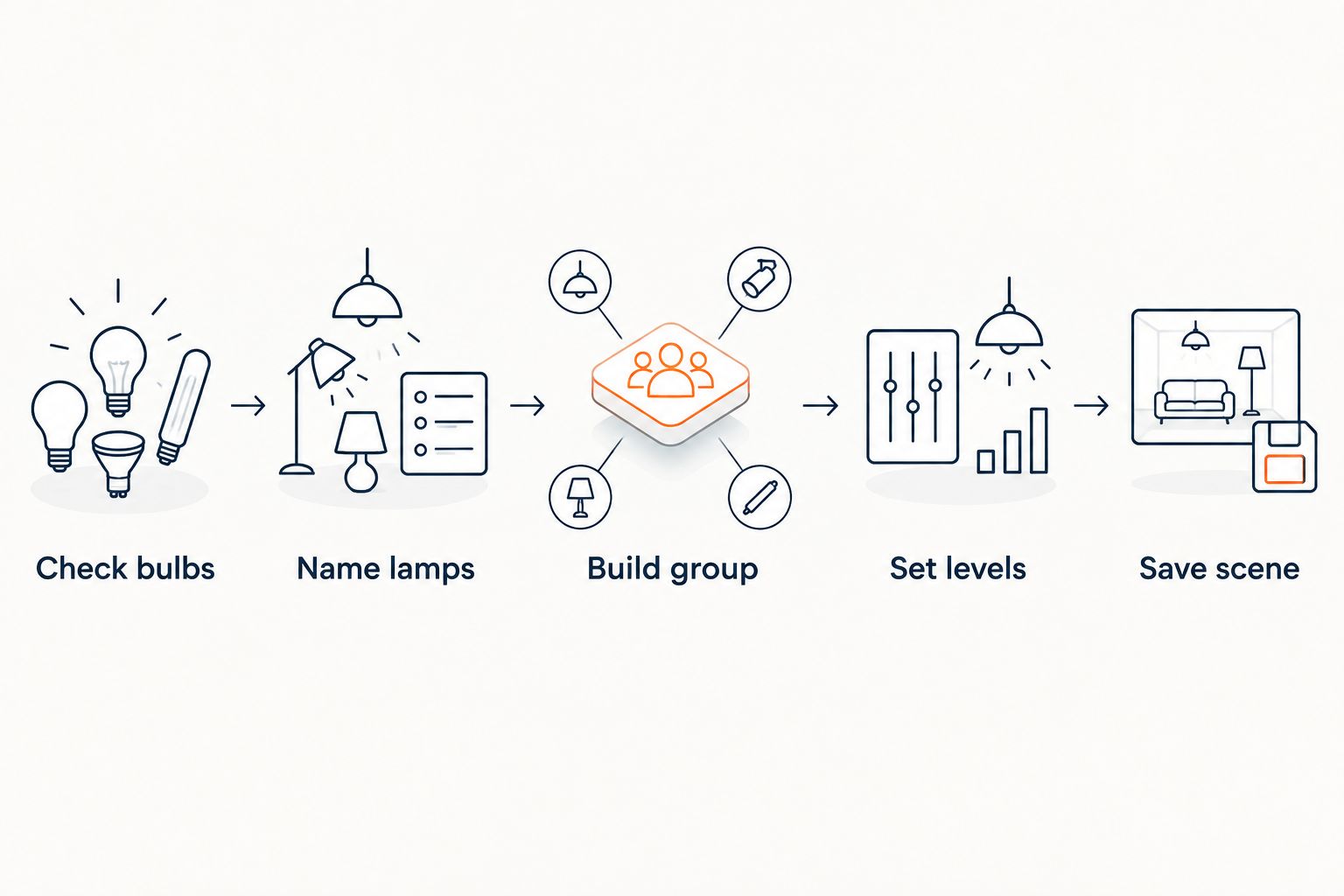
- A pendant lamp replica smart lighting scene needs smart bulbs in each lamp, one room group and one saved scene.
- Check each lamp's bulb type on its listing first: the lamp shape decides which bulbs fit.
- Keep the wall switch on, or app control drops out and the scene fails.
- Build two scenes, one bright and one low, and name them by what you are doing.
Why grouping pendant lamps matters
Pendant lamp replicas rarely work alone. A mid-century dining room usually carries two or three pendants over the table plus a floor or wall lamp nearby. Each one has its own brightness, and if they are not matched the room looks uneven.
A scene fixes that. It stores a brightness and colour temperature for every lamp in the group, so one command recalls the whole look. You stop adjusting lamps one at a time.
This guide covers app setup only. It does not cover fitting or electrical work on a ceiling lamp, so treat the lamp as already installed by whoever normally handles that.
If you are still choosing pendants, the replica pendant lights for mid-century dining rooms guide covers the shapes. Browse the full range at Mobelaris.
Before you start
- A smart home app that supports rooms or groups and saved scenes, plus smart bulbs you already own or plan to buy.
- The bulb type for each lamp. Check the product listing for the holder and bulb details, and match the smart bulb to it. Do not assume every pendant takes the same bulb.
- The gotcha: smart bulbs only respond while they have power. If someone turns the wall switch off, the bulb disappears from the app and the scene cannot run. Leave the switch on and control brightness from the app or a smart button.
Verdict: buy smart bulbs for the lamps, not a new set of lamps. The scene lives in the bulb and the app, so any pendant that takes a suitable bulb works.
Add each lamp to your app
- Screw a smart bulb into each pendant with the power off at the switch, then switch on.
- Open your smart home app and choose the option to add a device. Labels differ by app, so look for Add device or Add light.
- Follow the pairing prompt for each bulb, one at a time, so you can tell which is which.
- Rename every bulb as you add it: "Dining pendant left", "Dining pendant centre", "Dining pendant right".
Expected result: three bulbs listed by name, each responding when you tap it.
Naming matters more than it looks. Voice assistants and automations pick lamps by name, and "Light 3" tells you nothing at 9pm.
Build the group
- Create a room or zone called Dining room.
- Assign all pendant bulbs to it.
- Add any other lamp that shares the space, such as a floor lamp on a smart plug.
- Tap the group name. Every lamp should switch together.
Expected result: one tap on the group name toggles all lamps.
If a lamp is on a smart plug rather than a smart bulb, the plug only switches it on or off. It cannot dim the lamp. For scheduling a plug-controlled lamp, see how to schedule a Grasshopper lamp replica with a smart plug.
Set levels and save the scene
- Open the group and choose Create scene or Add scene.
- Name it for the activity, not the lamp: "Dinner", "Homework", "Late evening".
- Set the pendants over the table to the same brightness first.
- Set secondary lamps lower, so the table is the brightest point in the room.
- Choose a colour temperature and apply it to the whole group. Warm white suits dining; a cooler white suits tasks.
- Save.
Expected result: recalling the scene sets every lamp to its stored level in one action.
| Scene | Pendants | Secondary lamps | Best for |
|---|---|---|---|
| Dinner | Medium, warm | Low | Eating and conversation |
| Homework | High, neutral | Medium | Reading and laptops |
| Late evening | Low, warm | Off | Winding down |
The pattern: pendants lead, secondary lamps support. Reverse that and the room looks flat.
Variant: run the scene automatically
Once the scene exists, trigger it instead of tapping it.
- Open Automations in your app.
- Choose a trigger: a time, sunset, or a button press.
- Set the action to Recall scene and pick "Late evening".
- Save and test it once manually.
Expected result: the lamps move to the saved levels when the trigger fires.
Sunset is the most useful trigger in winter, because the time shifts for you. A fixed clock time is better for a routine such as a weekday dinner hour. A similar approach works for a wall lamp, as in automatically turning on a Serge Mouille wall lamp replica at sunset.
Troubleshooting
- One pendant does not respond. The wall switch is probably off. Switch it on and wait a moment for the bulb to reconnect.
- Lamps change at slightly different moments. Large groups can stagger. Put them in one group rather than triggering several separate lamps in a row.
- Brightness looks uneven across identical pendants. Different bulb models dim differently. Use the same bulb in every pendant.
- A bulb vanished from the app. Re-pair it, then put it back into the group and check the saved scene still includes it.
- The scene recalls the wrong colour. Resave the scene after setting colour temperature on the group, not on one lamp.
Customise your setup
Start with the table scene, then extend. Add a second room, link a button by the door to "Dinner", or set a dimmer level that runs before bedtime.
A good scene is simple enough that anyone in the house can run it. If planning pendant lighting for a bigger layout, the planning pendant lighting guide covers how many pendants a space can carry, which feeds directly into how many bulbs you group. For the wider room, lighting a mid-century modern room with replica lamps sets out how pendant, floor and wall lamps layer.
FAQ
What is a pendant lamp replica smart lighting scene?
It is a saved setting that stores brightness and colour for every pendant in a group. One tap recalls all of it. The lamps need smart bulbs or smart plugs to take part.
Do I need special pendant lamps for smart lighting?
No. The smart part is the bulb. Check the bulb type on each lamp's listing, then buy a matching smart bulb.
Why does my scene stop working when someone uses the wall switch?
A smart bulb with no power cannot receive commands. Keep the wall switch on and control the lamps from the app.
Can a smart plug dim a pendant lamp?
No. A smart plug switches the lamp on or off only. Dimming needs a dimmable smart bulb.
How many scenes should I make for one room?
Two or three. A bright one for tasks, a medium one for meals and a low one for the evening cover most days.
Can I mix different pendant shapes in one group?
Yes. Use the same bulb model in each so dimming matches, then adjust levels per lamp if one shade lets more light through.
One last thing
Save the scene as soon as it looks right, then leave it alone for a week. Most people keep tweaking levels and end up with three half-finished versions. One good "Dinner" scene beats five average ones.