
How to add a smart bulb to an artichoke lamp replica
A smart bulb turns an artichoke lamp replica into a lamp you can dim, schedule and colour-tune from your phone, without replacing the fitting. Instead of reaching for the wall switch every evening, pair one bulb and set the scene once.
- A smart bulb artichoke lamp replica setup works if the bulb physically fits inside the shade cluster and the wall switch stays on.
- Match the bulb's cap type and shape to your current bulb before you buy anything.
- Pair the bulb in its own app first, then link it to Alexa, Google Home or Apple Home.
- Wireless dropouts inside a metal shade are fixed by moving the hub or router, not by replacing the lamp.
Why this matters
An artichoke pendant hides its light source inside layered overlapping leaves. That is the whole appeal of the design: soft, indirect glow with no visible bulb. It is also why a smart bulb behaves differently here than in a table lamp. The bulb sits in a tight space, behind metal or painted layers, and the lamp is usually controlled by a single wall switch.
Get three things right and the setup takes minutes: the bulb fits, the switch stays on, and the signal reaches the bulb. This guide covers all three, then shows how to extend the setup to scenes and schedules. If you are still choosing a lamp, the Mobelaris online store is the place to browse the lighting range.
Before you start
- What you need: a smart bulb, a smartphone with the bulb maker's app, your home Wi-Fi details, and the lamp already hung and working with a standard bulb.
- Match the bulb: take out the current bulb and read the cap type and shape on it. Buy a smart bulb with the same cap. Check the lamp's product page or documentation for the bulb type it was supplied with.
- Check the fit: an artichoke lamp has a compact interior. Compare the smart bulb's dimensions on its packaging with the bulb you are replacing. A bulb that is longer or wider may not sit properly among the leaves.
- The gotcha: a smart bulb only answers your phone while it has power. If someone flicks the wall switch off, the bulb disappears from the app. Leave the switch on and control the lamp from the app, a voice assistant or a smart button.
For questions about household wiring and standard fittings, see can replica designer lamps use standard household wiring. A smart bulb screws into the existing socket and needs no rewiring; anything beyond swapping the bulb is a job for a qualified electrician.
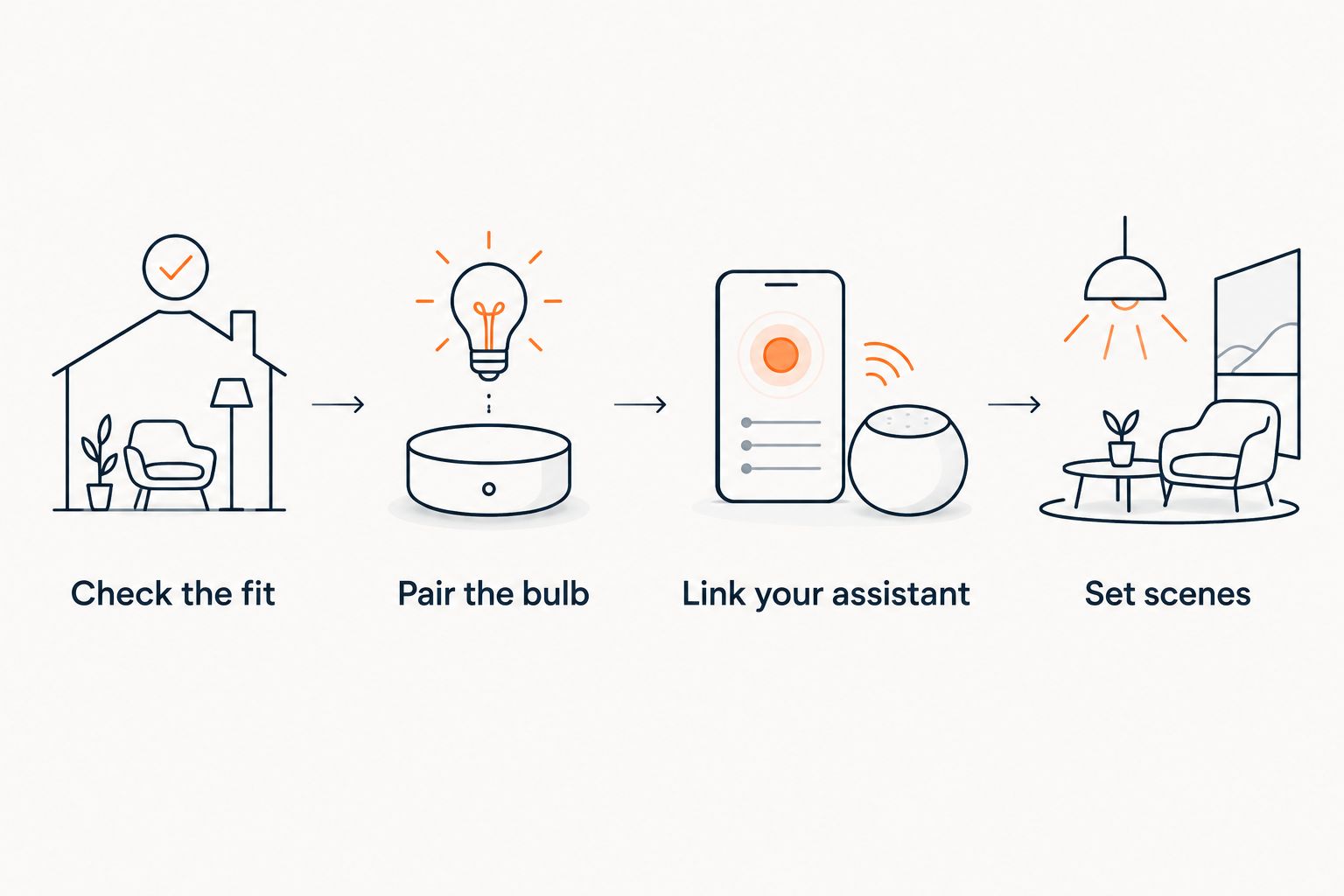
Choose the right smart bulb
The connection type decides how much hassle you get later.
| Connection | Needs a hub | Best for |
|---|---|---|
| Wi-Fi | No | One or two lamps, simplest setup |
| Bluetooth | No | A single lamp controlled at close range |
| Zigbee | Yes | Whole-home lighting with many bulbs |
| Matter over Thread or Wi-Fi | Depends on the bulb | Mixing Apple, Google and Amazon ecosystems |
Pick a Wi-Fi bulb if this is your first smart light. It pairs straight to your router and works with the main voice assistants. Pick Zigbee or Matter if you plan to automate several rooms.
Choose a warm-white or tunable-white bulb for an artichoke lamp. The design is built around a warm, diffused glow, so a bulb that dims smoothly down to a low level matters more than a full colour range. Colour bulbs work, but the layered shade tints the light in ways you may not want.
Set up your smart bulb
Install the bulb
- Switch the lamp off at the wall and let the old bulb cool.
- Unscrew the old bulb and screw in the smart bulb until it is snug.
- Switch the wall switch back on. The bulb should light up, often in a flashing or pairing mode.
Expected result: the bulb is lit and, in most models, blinking to show it is ready to pair.
Pair the bulb in its own app
- Install the bulb maker's app and create an account if prompted.
- Choose the add-device option (the label varies by app) and select your bulb type.
- Connect to your 2.4 GHz Wi-Fi network when asked. Many Wi-Fi bulbs cannot join a 5 GHz network.
- Enter your Wi-Fi password and wait for the app to confirm the connection.
- Name the bulb after the room, for example "Dining pendant". Voice assistants read this name aloud, so keep it short.
Expected result: the app shows the bulb as online and the on/off and brightness controls respond within a second or two.
Link it to your voice assistant
- Open Alexa, Google Home or Apple Home.
- Add the bulb maker's service or scan the bulb's setup code, depending on the platform.
- Assign the bulb to the correct room.
- Say "turn on the dining pendant" to test it.
Expected result: the voice command works and the bulb appears in your home app alongside your other devices.
Second workflow: control the lamp on a schedule
Once the bulb is paired, the same setup handles routines. This is the more useful half of the job.
- In your assistant's app, create a routine and choose a time or sunset as the trigger.
- Add the action: turn on the bulb at a chosen brightness.
- Add a second routine to dim or switch off at bedtime.
- Run each routine once manually to confirm it works.
If you would rather dim with a dedicated control than an app, read how to automatically dim an artichoke lamp replica with a smart switch. For a lamp on a plug rather than a hard-wired pendant, how to schedule a Grasshopper lamp replica with a smart plug covers the plug route.
Troubleshooting
- The bulb will not pair. Confirm your phone is on a 2.4 GHz network, then reset the bulb using the maker's reset sequence (usually switching it on and off several times) and retry.
- The bulb drops offline. Metal shades can weaken a wireless signal. Move the router or hub closer, or add a Wi-Fi extender nearby.
- The bulb does not fit. Return it and choose a smaller shape. Do not force it into the shade cluster.
- The bulb vanishes from the app overnight. Someone has used the wall switch. Leave the switch on, or fit a switch cover as a reminder.
- Dimming flickers at low levels. Try a different bulb brand or update the bulb's firmware in its app.
Customise your workflow
A single bulb is the starting point. Group it with other lamps in the same room so one command sets the whole scene. Create a "dinner" scene at a low warm setting and a "clean" scene at full brightness.
Sizing and finish affect how the glow reads once the bulb is in. The artichoke lamp replica size and finish guide explains how each option shapes the light, and artichoke lamp replica for open-plan kitchens shows how to place one in a busy space.
FAQ
Can I put a smart bulb in an artichoke lamp replica?
Yes, if the bulb has the same cap as the one you remove and physically fits inside the shade cluster. Compare dimensions on the packaging before you buy.
Which smart bulb type is best for a pendant lamp?
A Wi-Fi warm-white or tunable-white bulb is the simplest choice. It needs no hub and dims smoothly, which suits a diffused pendant glow.
Why does my smart bulb go offline?
The most common cause is the wall switch being turned off. A weak signal behind metal shades is the second cause; move the router or hub closer.
Do I need a hub?
Not for Wi-Fi or Bluetooth bulbs. Zigbee bulbs need a compatible hub, and Matter bulbs depend on the model.
Can I still use the wall switch?
You can, but the bulb loses power and drops out of the app each time you switch it off. Leave it on and control the lamp from the app or voice.
Will a smart bulb change how the lamp looks?
The shade design is unchanged. Warm-white settings keep the classic glow, while colour modes tint the light through the layered leaves.
One last thing
Buy the bulb with a dimming range that goes low. An artichoke lamp is at its best as ambient evening light, and a smart bulb that bottoms out too bright wastes the shade's main strength. Read the dimming range on the packaging before you commit.