
Grasshopper Lamp Smart Plug Schedule: Plug App Wins (2026)
Instead of switching your grasshopper lamp replica on and off by hand each evening, set an on/off schedule in a compatible smart plug’s app. Leave the lamp’s own switch on so the plug can control when it receives power.
- For a grasshopper lamp smart plug schedule, set the on and off times in the plug’s app, not on the lamp.
- A fixed-time schedule is best when you want the lamp on at the same time every day.
- A sunset schedule is best when your plug’s app supports it and you want the start time to follow dusk.
- Test the plug’s manual control before scheduling; the lamp’s own switch must remain on.
Why this matters
The smart plug controls power; it does not change the lamp’s controls. That distinction decides whether the schedule works. If the lamp’s own switch is off, a scheduled on command can supply power to the plug without lighting the lamp.
Mobelaris is a furniture and lighting retailer for people furnishing a room; the smart plug’s app is what runs this particular workflow. You can browse Mobelaris for lighting, but choose the schedule around the lamp and plug you actually use. This guide does not assume that a particular lamp model or smart plug is in the Mobelaris catalogue.
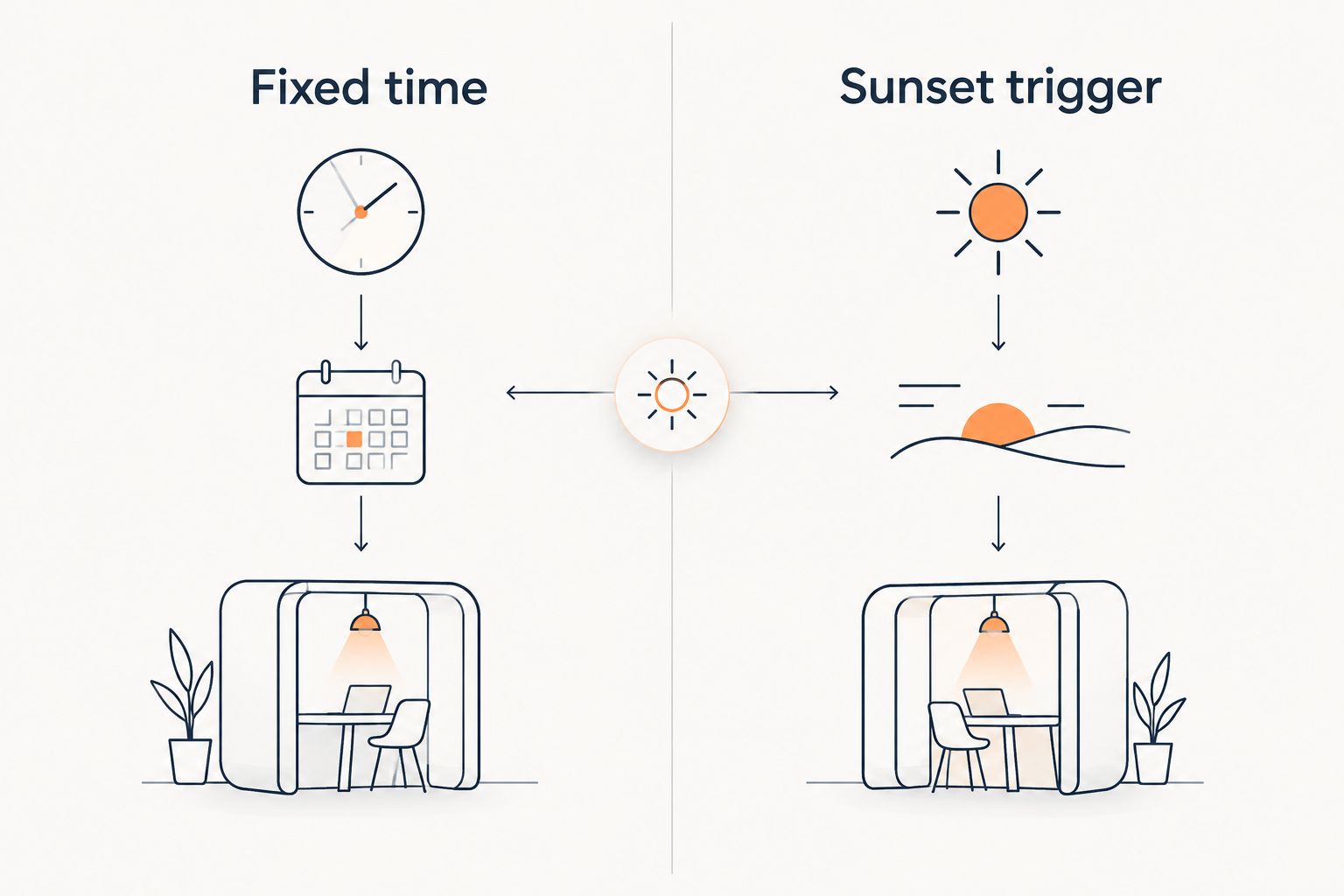
There are two useful ways to schedule the lamp. A fixed time gives you a predictable routine. A sunset trigger adjusts the start time as dusk changes, but only if your plug’s app offers that option. Set up a basic fixed-time routine first, confirm it works, then change the start trigger if sunset timing suits your room better.
Before you start
- Have the lamp, smart plug, phone and plug maker’s app ready. You need access to the Wi-Fi network the plug will use and the account required by its app.
- Check the plug’s connection requirements in its app or instructions. Some plugs require a 2.4 GHz Wi-Fi network; a phone connection alone does not confirm that the plug can join the same network.
- Check how the lamp behaves after power returns. Switch the lamp on, use its normal control to turn it off and back on, then leave that control in the on position. A smart plug schedule cannot operate a lamp whose own switch is off.
If you plan to use sunset timing, also check whether the plug’s app offers a sunset trigger. Grant the location access it requests for that feature and confirm the app has the correct location. Do this before replacing a working fixed-time schedule: not every plug app supports the same scheduling options.
Choose your schedule
| Option | Best for | Advantage | Limitation |
|---|---|---|---|
| Fixed time | A repeatable evening routine | You choose the exact on and off times. | The start time does not follow changing daylight. |
| Sunset trigger | Lighting that starts around dusk | The start time follows the sunset setting when the app supports it. | It depends on the app’s location and sunset controls. |
Start with fixed times. They make the first test easy to interpret: if the lamp does not respond at the time you selected, you can check the plug and lamp before investigating location settings. The sunset variant uses the same paired device and changes only the start trigger.
Pair the smart plug
The plug must respond to a manual command in its app before a schedule can control the lamp. Do not build the routine while pairing is still incomplete.
- Connect the lamp through the smart plug and leave the lamp’s own switch on.
- Open the plug maker’s app and use its device-add control, often labelled Add device or shown as +. Select the smart plug model you have; follow that model’s pairing prompts rather than assuming all plugs use the same button sequence.
- Connect the plug to the Wi-Fi network requested by the app. If the app asks for an account or permission during pairing, complete that step before moving to scheduling.
- Give the plug a distinct device name, such as Living room lamp. A clear name matters if your app lists several plugs or you later add the device to a voice assistant.
- Use the device’s on/off control in the app. Confirm that an on command lights the lamp and an off command extinguishes it.
Expected result: you can control the lamp from the plug’s device screen. If the app shows the plug as connected but the lamp stays dark, check the lamp’s own switch before changing Wi-Fi or schedule settings. The manual test isolates that issue without waiting for a timer.
Set the fixed-time schedule
Build separate on and off events if the app presents them separately. An on event without an off event leaves the routine unfinished; an off event alone cannot start the evening lighting.
- Open the paired plug’s device screen and find Schedule, Schedules or the app’s equivalent automation control. Choose the option to add an event.
- Select On as the action. Set a start time that suits your routine, such as 18:00, and choose the days on which it should repeat.
- Save the on event. Check that the app shows it as active rather than as an unsaved draft or a disabled rule.
- Add a second event with Off as the action. Choose an end time, such as 23:00, and select the days on which it should run.
- Check both entries side by side. The selected days must match your intended routine; do not assume the app copied the days from the first event to the second.
Expected result: the device screen lists an active on event and an active off event for the days you selected. The example times are choices for a household routine, not settings required by the lamp. Pick times that match when you want the room lit.
Some apps put both actions inside one routine instead of two separate entries. Use the app’s available structure, but verify the same outcome: one trigger turns the plug on and another turns it off. If the app offers a timer as well as a repeating schedule, choose the repeating schedule for a daily routine. A one-off countdown does not replace it.
Test the schedule
A saved rule is not proof that the lamp will respond. Test the event before relying on it for an evening routine.
- Keep the lamp’s own switch on and confirm the plug is shown as connected in its app.
- For a quick test, temporarily set the on event for 10 minutes from now and the off event for 15 minutes from now. Save both changes and check that each event remains active.
- Leave the plug alone and watch for both actions. Do not use the lamp’s switch between them: that would prevent the test from showing whether the plug controls both transitions.
- Restore your intended on and off times after the test. Reopen the schedule list to confirm the restored entries and repeat days were saved.
Expected result: the lamp turns on at the test start time and off at the test end time, then the app shows your intended routine again. Testing both events catches a missed off rule before it becomes part of the daily pattern.
If only one event works, inspect that event’s action, selected days and enabled state before deleting the whole routine. Fixing one entry is simpler than rebuilding a paired device that already responds to manual control.
Turn the lamp on at sunset instead
A sunset trigger is a useful second variant when the app offers one. It changes when the lamp starts; you can keep a fixed off time so the end of the routine stays predictable.
- Confirm the app has the location access its sunset feature requires and that the location shown is correct.
- Open the on event you already tested. Look for Sunset among the available trigger choices. If the option is absent, keep the fixed-time schedule; a clock time is not the same feature under a different name.
- Select Sunset and check which days the event repeats. If the app offers an offset, choose whether the lamp should turn on at sunset or before it.
- Save the edited on event. Leave the fixed off event active, then check the schedule list for both entries.
- Review the next scheduled start time shown by the app, if it displays one. A time based on the wrong location is a location-setting problem, not a reason to adjust the lamp.
Expected result: the plug has a sunset-based on event and a separate off event. The fixed-time version remains the better choice if you need an exact start time or the app has no sunset control. Neither option changes the lamp’s brightness: an ordinary on/off smart plug controls power, not the lamp’s light level.
Troubleshooting
The plug responds in the app, but the lamp does not light. Leave the plug on and check the lamp’s own switch. If the lamp was switched off at its cord or fixture, an app command to the plug will not switch that control back on.
The lamp responds manually, but the schedule does nothing. Reopen the schedule and check that the event is enabled, uses the intended action and includes the current day. Look for a one-off timer that was set instead of a repeating schedule.
The on event works, but the lamp stays on. Check the off event separately. It needs its own Off action, selected days and saved, active state unless your app groups both actions in one routine.
Sunset is missing or the displayed time looks wrong. Confirm that the app supports a sunset trigger, then check its location permission and selected location. Do not keep changing the fixed off time to compensate for an incorrect sunset start.
The schedule behaves differently after changing phones or networks. Open the plug’s app and confirm the device still appears connected and its schedule remains enabled. Test manual control first; if that fails, follow the plug maker’s connection instructions before editing the routine.
Customize your workflow
Once the basic schedule works, decide whether the lamp belongs in a wider room routine. If your smart-home app supports grouping, you can put it alongside other devices you control there. Keep the plug’s schedule and any separate voice-assistant automation clear in your own setup so you know which system is responsible for each on or off event.
For the room itself, start with where the light falls rather than adding more rules to solve a placement problem. The guide to lighting a mid-century modern room with replica lamps covers the wider lighting arrangement. Mobelaris lighting is relevant when you are choosing pieces for the room; the schedule for an existing lamp still belongs in its smart plug’s controls.
FAQ
How do I set a grasshopper lamp smart plug schedule?
Pair a compatible smart plug in its app, test that it controls the lamp, then save an on event and an off event. Leave the lamp’s own switch on so the scheduled events can work.
Does the grasshopper lamp replica need its own app?
No lamp-specific app is needed for a basic smart plug schedule. The plug’s companion app handles the timing, while the lamp’s normal switch remains on.
Should I use a fixed time or a sunset trigger?
Use a fixed time for an exact, repeatable start; use a sunset trigger when the plug’s app supports it and you want the start to follow dusk. Keep a separate off event in either case.
Why does my smart plug turn on without lighting the lamp?
Check the lamp’s own switch first. The plug can supply power on schedule, but it cannot change a lamp switch that has been left off.
Can a smart plug schedule dim the lamp?
A basic on/off smart plug schedule does not dim the lamp. It switches power on and off; brightness control requires a separate setup that supports it.
Why can’t I find a sunset option in the plug’s app?
The app might not offer a sunset trigger, or that feature might need location access. Check the app’s available trigger choices and location settings; use a fixed-time schedule if sunset is unavailable.
One last thing
Test the off event as carefully as the on event. Turning the lamp on is the visible success, but a routine is complete only when it also switches the lamp off on the days you selected. For Mobelaris furniture and lighting shoppers styling a room, that test keeps the technology separate from the choice of where the lamp looks and works best.