
How to connect a 265 wall lamp replica to a smart switch
A 265 wall lamp replica on a smart switch means you stop reaching for the wall plate: the lamp comes on at dusk, dims for the evening and switches off at bedtime. This guide covers the app side of that setup, from pairing to schedules and scenes. The physical fitting of the switch is a job for a qualified electrician.
- A 265 wall lamp replica works with a smart switch only if the switch and the lamp's bulb are compatible.
- Check the bulb and electrical details on the lamp's product page before you buy a switch.
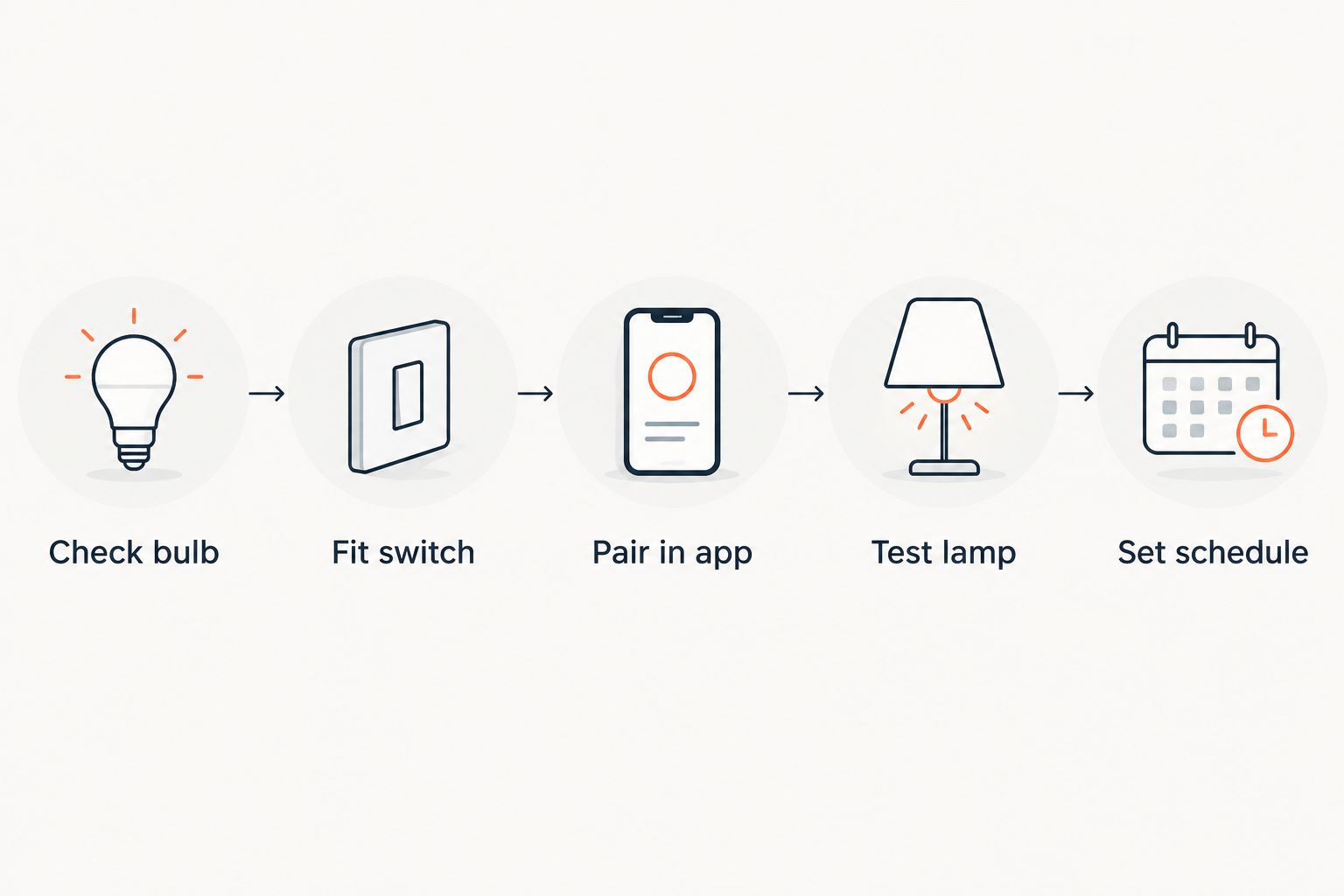
- Have a qualified electrician fit the switch, then pair it in the app and build schedules.
- Most problems come from dimming mismatches, weak Wi-Fi or a switch placed away from your router.
Why this matters
A wall lamp is the light you touch most in a bedroom or hallway. It is also the one you forget to turn off. A smart switch fixes both problems: you set the schedule once and the lamp follows it.
The catch is that a designer-style wall lamp is not a smart bulb. The switch controls the circuit, so the lamp's bulb decides what the switch can actually do. That is why compatibility comes first.
If you are still choosing the lamp, the 265 wall lamp replica buyer's guide covers what to look at before you order. Mobelaris sells designer-style lighting alongside furniture, and each lamp's product page is the place to confirm bulb details.
Before you start
- A smart switch that suits your wall box and your lamp's bulb. Switch packaging lists the bulb types it supports. Match it against your lamp's product page.
- A 2.4 GHz Wi-Fi connection or a hub, depending on the switch brand. Many switches cannot join a 5 GHz-only network.
- The switch's app on your phone, already signed in.
- A qualified electrician for the fitting. Do not attempt to swap a wall switch yourself unless you are qualified to.
The gotcha that catches most people: dimming only works when the switch, the bulb and the lamp all support it. A non-dimmable bulb behind a dimmer switch will flicker or buzz. Settle the bulb question first, then buy the switch.
Set up your switch in the app
- Open the switch's app and choose the option to add a new device.
- Put the switch into pairing mode as the instructions for your model describe. Most blink an indicator light.
- Pick your home Wi-Fi network and enter the password.
- Name the switch after the room and the lamp, for example "Bedroom wall lamp". Clear names matter once you use voice control.
Expected result: the switch shows as online in the app, and toggling it in the app turns the lamp on and off.
Check the lamp responds properly
- Switch the lamp on and off from the app three or four times.
- If your switch dims, move the brightness slider slowly from low to high.
- Watch for flicker, buzzing or a lamp that will not go fully dark.
- If you see any of these, change the bulb to a dimmable type that the switch supports, or set the switch to on/off only.
Expected result: the lamp responds immediately and holds a steady light at every setting you plan to use.
Build a schedule
- In the app, open the schedules or automations section.
- Create a new schedule and choose the lamp as the device.
- Set the on time and the off time. Many apps also offer sunset and sunrise triggers.
- Choose the days it should run, then save.
Expected result: the lamp switches on and off by itself at the times you set. Check it the first evening.
Variant: switch the lamp when something else happens
A schedule is only one trigger. The same switch can react to other events.
Turn the lamp on at sunset
- Create an automation and choose sunset as the trigger.
- Select the lamp's switch as the action and set it to on.
- Add a second automation for a fixed bedtime that sets it to off.
Run the lamp from a scene
- Create a scene such as "Evening" in your smart home app.
- Add the lamp's switch, and any other lights you want, at the brightness you like.
- Trigger the scene by voice, by button or from the app.
Expected result: one command changes the whole room's lighting at once.
If you have a dimmable pendant in the same room, the PH5 pendant dimmer switch guide walks through the same pairing logic for a different fitting.
Troubleshooting
- The switch will not pair. Move your phone close to the switch, confirm you are on a 2.4 GHz network and restart pairing mode.
- The lamp flickers when dimmed. The bulb is probably not dimmable, or the switch does not suit it. Swap the bulb for a dimmable type or turn dimming off in the app.
- The switch drops offline. Signal is usually the cause. Move the router or add a Wi-Fi extender closer to the room.
- The schedule runs at the wrong time. Check the time zone and the daylight saving setting in the app.
- Voice control cannot find the lamp. Re-link the switch's skill or integration in your assistant's app and rename the device with a simple name.
If the lamp stops working entirely, switch off at the supply and call a qualified electrician rather than opening the fitting.
Customise your workflow
Once the basics run, extend the setup:
- Link the lamp to a motion or door sensor for a hallway that lights as you walk in.
- Group it with other lamps so one voice command covers the whole room.
- Set a low-brightness evening scene for reading.
The same ideas apply to other lamp types. The artichoke lamp smart switch guide shows an automatic dimming routine you can copy for a wall lamp.
FAQ
Can a 265 wall lamp replica work with a smart switch?
Yes, if the switch supports the lamp's bulb type. Check the lamp's product page for bulb details, then match them to the switch's supported list.
Do I need a dimmable bulb?
Only if you want dimming. A dimmable bulb is required for a dimming switch. For on/off control, a standard switch and bulb pairing is enough.
Should I fit the smart switch myself?
No, unless you are qualified. Have a qualified electrician fit it, then do the pairing and scheduling yourself in the app.
Is a smart switch better than a smart bulb for a wall lamp?
A switch controls the circuit and suits fittings you want to keep on a wall plate. A smart bulb controls only that bulb. Pick based on how you use the lamp.
Will the lamp work with voice assistants?
Most smart switches link to common voice assistants through their app. Check your switch's supported list before buying.
Why does my lamp buzz on the dimmer?
Buzzing usually means a bulb and dimmer mismatch. Try a dimmable bulb the switch supports.
One last thing
Buy the bulb and the switch as a pair, not separately. Most of the frustration in this setup comes from a dimmer switch and a bulb that were never meant to work together. Settle that first and everything else in this guide takes minutes.