
Automatically dim a Snoopy lamp replica with a smart switch
Instead of reaching for the lamp every evening and nudging the brightness by hand, pair your Snoopy lamp replica with a smart switch so it dims itself on a schedule. This guide covers the plug-in route: compatibility checks, app setup, a dimming schedule, a second trigger, and fixes for the problems that actually occur.
- A Snoopy lamp replica smart switch setup works only if the bulb in the lamp is dimmable.
- Use a plug-in smart dimmer or a dimmable smart bulb; this guide does not cover rewiring.
- Build a schedule with three scenes: evening, wind-down and night.
- Flicker or buzzing almost always points to a bulb and dimmer mismatch, not a faulty lamp.
Why this matters
A dome-shaped table lamp sits in the same spot all day and gets switched on at roughly the same time every evening. That makes it an ideal candidate for automation. A fixed brightness is too harsh at 21:00 and too dim at 17:00, and nobody wants to adjust it twice a day.
A smart switch fixes the routine, not the lamp. The lamp stays a simple table lamp; the schedule does the work. If you are still choosing a lamp, the Achille Castiglioni Snoopy lamp replica buying guide covers what to look for first.
Verdict: a plug-in smart dimmer or a dimmable smart bulb is the right route for a Snoopy lamp replica smart switch setup. It is the only route this guide covers.
Before you start
You need three things in place before step one:
- A dimmable bulb in the lamp, or a smart bulb that dims itself. Check the bulb packaging for the word dimmable.
- A smart home app on your phone, already connected to your home Wi-Fi.
- A smart plug with dimming support, or a smart dimmer designed to plug into a socket. A plain on/off smart plug cannot dim anything.
The gotcha that catches most people: the dimmer and the bulb have to agree. A dimmer paired with a non-dimmable bulb gives you flicker, buzzing or no dimming at all. Check the bulb first, then buy the dimmer. Any supplied specification for your particular lamp and bulb comes from the manufacturer's documentation, so read it before you buy.
This guide does not cover opening up the lamp or changing its wiring. If you want to know whether a designer-style lamp suits standard household supply, read can replica designer lamps use standard household wiring and follow the maker's own instructions.
Set up your smart dimmer
The steps below use generic labels. Your app will word them slightly differently, so match the intent rather than the exact text.
- Plug the smart dimmer into the wall socket nearest the lamp.
- Plug the lamp into the dimmer and switch the lamp's own switch to on.
- Open your smart home app and choose the option to add a device.
- Follow the pairing prompts until the app confirms the dimmer is connected to Wi-Fi.
- Rename the device to something specific, such as Snoopy lamp. Voice assistants and automations find it faster by name.
Expected result: a slider or brightness control for the lamp appears in the app, and dragging it changes the light.
Test the dimming range
Before building any schedule, check the lamp across its whole range.
- Set brightness to the highest level and note how the lamp looks.
- Lower it in steps until it reaches the minimum.
- Look for flicker, buzzing or a sudden cut-off near the bottom.
- Note the lowest level where the light is stable.
Expected result: a smooth fade with no visible flicker. Write down the lowest stable level; your night scene must not go below it.
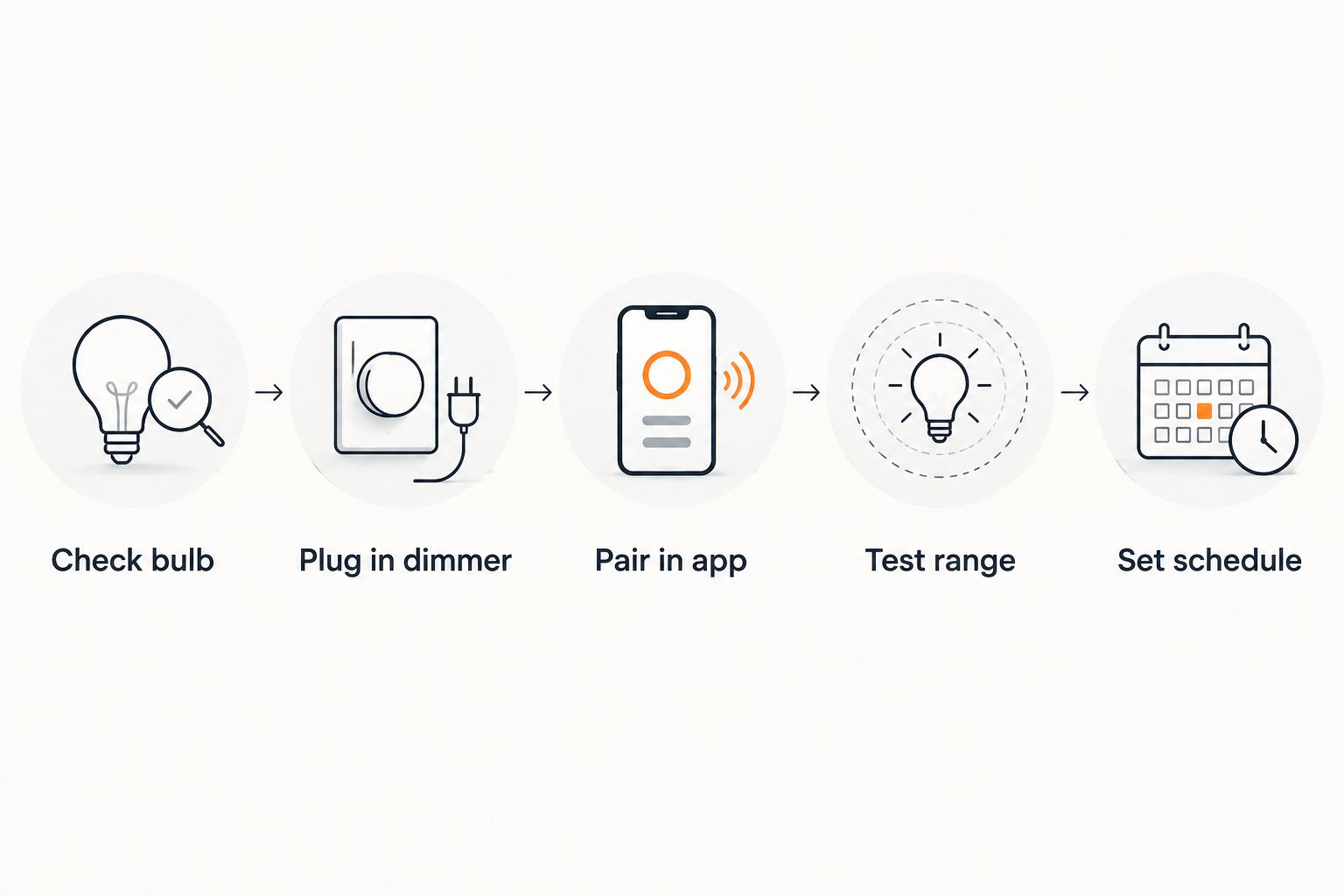
Build the dimming schedule
A schedule is a set of timed brightness changes. Three scenes cover most homes.
Evening scene
- In the app, open the automation or schedule section and create a new schedule.
- Select the Snoopy lamp as the device.
- Set the start time for when you usually sit down in the room.
- Set brightness to a high level so the lamp works as task lighting.
- Choose which days it repeats.
Expected result: the lamp switches on by itself at that time, at the chosen brightness.
Wind-down scene
- Create a second schedule for the same lamp.
- Set the time one to two hours later than the evening scene.
- Set brightness to roughly half.
- Save, then confirm the two schedules do not overlap.
Expected result: the lamp drops to a softer level without you touching it.
Night scene
- Create a third schedule for bedtime.
- Set brightness to the lowest stable level you noted in the range test.
- Add a final schedule that switches the lamp off, or leave the night scene running as a low glow if the lamp lights a hallway or reading corner.
Expected result: a three-step fade across the evening that needs no input from you.
Dim on a different trigger
The same lamp can respond to something other than the clock. Many apps let you build a rule such as: when the sun sets, turn the lamp on at a set brightness.
- Create a new automation and choose sunset as the trigger.
- Select the Snoopy lamp as the action and set its brightness.
- Add a time condition if you want it to stay off before a certain hour.
Expected result: the lamp follows daylight through the seasons, so you do not edit the schedule every few weeks.
If you already light another designer-style lamp this way, the setup is almost identical. See how to automatically dim an Artichoke lamp replica with a smart switch for a parallel walkthrough.
Troubleshooting
- The lamp flickers at low brightness. The bulb and dimmer are mismatched, or the minimum level is set too low. Raise the minimum brightness in the app, or swap to a bulb marked dimmable.
- The lamp buzzes when dimmed. Buzzing usually comes from the bulb or the dimmer, not the lamp body. Try a different dimmable bulb before replacing anything else.
- The dimmer shows in the app but brightness will not change. A plain on/off plug has been paired by mistake. Check that the device supports dimming.
- The schedule runs at the wrong time. Check the time zone setting in the app and on your phone. A mismatch shifts every schedule.
- The lamp ignores the schedule. The lamp's own switch is off. Leave it switched on and control it only from the app.
Customise your workflow
Once one lamp works, widen the scope:
- Group the lamp with other lights so a single voice command or button sets a whole room.
- Add a weekend schedule with later times.
- Create a Reading scene at a fixed brightness for quick access.
- Link the lamp to a room-wide Goodnight routine that dims everything together.
For wider lighting ideas, how to light a mid-century modern room with replica lamps explains how table, floor and pendant lights work together. If you are browsing for the lamp itself, Mobelaris sells designer-style mid-century furniture and lighting.
FAQ
Can I dim a Snoopy lamp replica with a smart switch?
Yes, if the bulb in the lamp is dimmable and the dimmer supports it. Check the bulb packaging before buying any smart hardware.
Do I need a smart dimmer or a smart plug?
You need a plug-in unit that supports dimming. A plain on/off smart plug switches the lamp but cannot change its brightness.
Can I use a dimmable smart bulb instead?
Yes. A dimmable smart bulb handles brightness on its own, so you can skip the dimmer and schedule the bulb directly in its app.
Why does my lamp flicker when dimmed?
Flicker usually means the bulb and dimmer do not match. Raise the minimum brightness or fit a bulb marked dimmable.
Should I rewire the lamp for a smart switch?
This guide does not cover rewiring. Use a plug-in dimmer or a smart bulb, and follow the manufacturer's instructions for any changes to the lamp itself.
Can I control the lamp by voice?
Most smart home apps link to voice assistants. Give the lamp a clear name in the app, then ask the assistant to set its brightness.
One last thing
Set the night scene first, not last. It is the level you notice most, and finding the lowest stable brightness early saves you from retuning the other two scenes later.