
How to connect a PH Snowball lamp replica to Alexa routines
A PH Snowball lamp replica has no smart features of its own, so Alexa controls it through a smart plug or a smart bulb, and an Alexa routine does the switching. Instead of getting up to turn the lamp on every evening, set one routine so it comes on at sunset and goes off at bedtime. This guide covers the app steps for both device types; browse the lamp itself at Mobelaris.
- A PH Snowball lamp replica reaches Alexa routines through a smart plug or smart bulb, never through the lamp itself.
- A smart plug switches the lamp on and off only. A dimmable smart bulb adds brightness control.
- Build the routine in the Alexa app under More, then Routines, with a Schedule trigger set to sunset.
- Most failed setups trace back to the Wi-Fi band or to the lamp's own switch being off.
Why this matters
A globe lamp is a mood piece. It earns its place in the evening, when the room is dim and the opal glow does the work. That is exactly the moment you least want to cross the room to find a switch.
Alexa routines remove that step. One routine can turn the lamp on at sunset, a second can turn it off at 22:30, and a voice phrase can override both. The verdict: for a plug-in PH Snowball lamp replica, a smart plug paired with the Alexa app is the simplest route to routines, and a dimmable smart bulb is the better route if you also want brightness control.
This guide covers plug-in and bulb-based control only. It does not cover changes to fixed ceiling wiring or wall switches.
Before you start
You need four things in place before opening the app:
- An Alexa account and the Alexa app on your phone, plus an Echo or other Alexa-enabled speaker already set up on your home Wi-Fi.
- Either a smart plug or a smart bulb that works with Alexa. This guide assumes you supply it. Check the lamp's product page on Mobelaris for what is and is not included in the box.
- The lamp's bulb fitting type. A smart bulb has to match the fitting and fit inside the globe. Check the bulb's packaging for the fitting type and for any note on enclosed shades.
- A 2.4 GHz Wi-Fi network. Many smart plugs and bulbs pair only over 2.4 GHz, not 5 GHz. If your router merges both bands under one name, pairing can fail without an error that explains why.
The gotcha that catches most people mid-setup: a smart plug only controls power to the lamp. If the lamp has its own switch, leave it in the on position, or Alexa will send power to a lamp that stays dark. And a smart plug cannot dim anything. Decide now whether you want on/off only or brightness control, because that decides which device you buy.
Set up your smart plug or bulb in Alexa
Follow the maker's own instructions for physically fitting the device. For a plug, that means plugging it into the wall socket and the lamp into the plug. For a bulb, it means fitting the bulb into the lamp with the power off. Then pair it with Alexa.
- Open the Alexa app and tap Devices at the bottom of the screen.
- Tap the + icon in the top corner, then tap Add Device.
- Choose the device type: Plug for a smart plug, Light for a smart bulb.
- Select the brand of your device from the list and follow the on-screen prompts. If the maker has its own app, Alexa may ask you to link that account first.
- When Alexa finds the device, tap it and confirm the Wi-Fi network. Choose your 2.4 GHz network.
- Give the device a short, speakable name such as "snowball lamp". Assign it to a room when prompted.
Expected result: the lamp appears under Devices, in the Plugs or Lights list. Say "Alexa, turn on the snowball lamp" and the lamp lights. If it does, the hard part is done. Routines are only a layer on top of this.
Build the evening routine
With the lamp responding to voice, build the routine that removes the need to ask.
- In the Alexa app, tap More, then tap Routines.
- Tap the + icon to create a new routine.
- Under Enter routine name, type something plain, such as "Evening lamp".
- Tap When this happens, then Schedule.
- Choose Sunset as the time. Alexa works out sunset from the location set on your Echo device.
- Pick the days under Repeat. Choose every day unless you want a weekday-only pattern.
- Tap Add action, then Smart Home, then choose your lamp, then set Power to on.
- Tap Save.
Expected result: the routine shows in your Routines list as active, with its next run time listed.
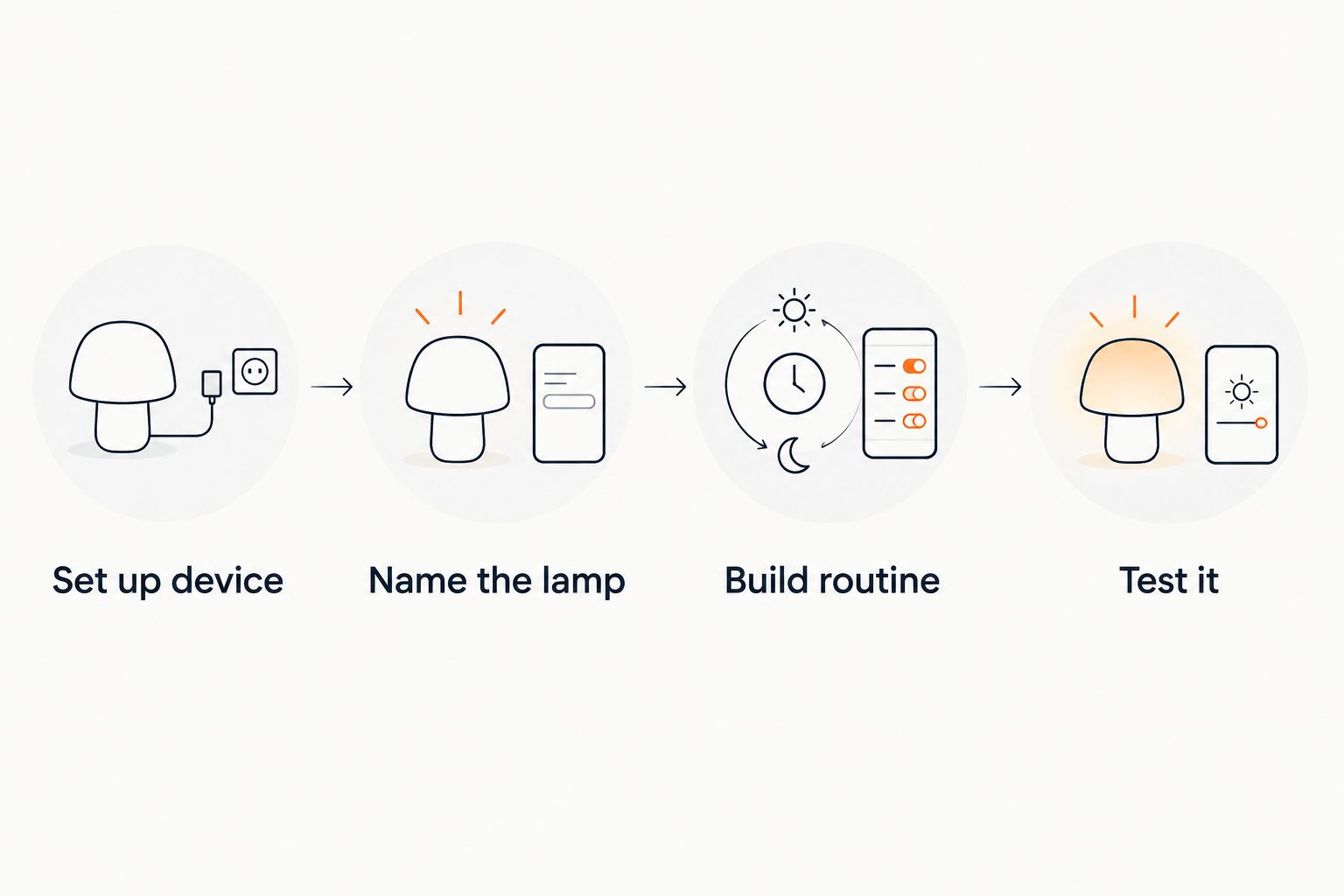
Add the off routine
Build the switch-off as its own routine rather than stacking it on the first one. Repeat the steps above, name it "Night lamp off", and choose Schedule with a fixed time such as 22:30. In the action, set Power to off.
Two separate routines are easier to adjust later. Moving the off time then never touches the on-time logic.
Add dimming with a smart bulb
If you fitted a dimmable smart bulb, add a brightness action to the evening routine:
- Open the Evening lamp routine and tap Add action.
- Tap Smart Home, then Lights, then choose your lamp.
- Set Brightness to 40 percent as a starting point, then tap Save.
A lower start level suits a globe lamp. The glass spreads light evenly, so even a modest setting fills the corner. Adjust in 10 percent steps over a few evenings until it suits the room.
Expected result: at sunset the lamp comes on already at 40 percent, not at full brightness. A smart plug does not offer this setting, because it has no way to change brightness.
Variant: run the lamp when you arrive home
The same lamp can respond to you instead of the clock. This second workflow suits a lamp in a hallway or living room that you want lit the moment you walk in.
- Create a new routine and name it "Arrive home lamp".
- Tap When this happens, then Location, and choose Arrive.
- Allow the Alexa app to use your location when it asks, and set your home address.
- Tap Add action, then Smart Home, choose your lamp, and set Power to on.
- Tap Save.
If you would rather use your voice, choose Voice as the trigger and type a phrase such as "I'm home". A compatible motion sensor can also act as a trigger under Smart Home in the same menu.
Expected result: the lamp lights when your phone arrives within the home location, or when you say the phrase.
Troubleshooting
These are the failures that genuinely occur with plug-and-bulb setups:
- Alexa cannot find the device. The phone or the device is on the wrong Wi-Fi band. Connect your phone to the 2.4 GHz network, restart the pairing mode on the plug or bulb, and try Add Device again.
- The routine runs but the lamp stays dark. The lamp's own switch is off, or a bulb is loose in the fitting. With a smart plug in use, switch the lamp itself on once and leave it on.
- No Brightness option appears. You are using a smart plug, or a bulb that is not dimmable. A plug only switches power. Replace it with a dimmable smart bulb if you want brightness control.
- Sunset triggers at the wrong time. Alexa uses the location and time zone set on your Echo device. Open the device settings in the app, correct the address, and the routine will follow.
- The device shows as unresponsive. Check the router, then power the plug or bulb off and on. If it stays offline, remove it from Alexa and add it again with Add Device.
Customise your routine
Once one lamp works, widen the scope:
- Add a second action to the Evening lamp routine to bring in other lamps at the same moment.
- Create a group for the room under Devices, so a single phrase controls every lamp in it.
- Use a warm white setting on a colour-capable bulb, so the globe keeps the soft tone that suits the design.
- Add a Wait action to stagger the lamps, so the room fills with light in sequence rather than all at once.
For other lamp shapes, the same app steps apply with a different device. The related guides below cover pendants, floor lamps and desk lamps.
FAQ
Can you control a PH Snowball lamp replica with Alexa?
Yes, through a smart plug or a smart bulb. The lamp has no built-in smart features, so Alexa controls the device that powers it, and routines then run on top of that.
Should I use a smart plug or a smart bulb?
Use a smart plug for simple on and off control. Use a dimmable smart bulb if you want brightness settings, provided the bulb matches the lamp's fitting and fits inside the globe.
Can Alexa dim the lamp?
Only with a dimmable smart bulb. A smart plug switches power on and off and cannot change brightness, whatever the routine asks for.
What happens if my Wi-Fi drops?
The lamp stays in its last state, but scheduled changes depend on your connection. A routine may not fire until the network returns.
Can one routine control several lamps?
Yes. Add one **Smart Home** action per lamp inside the routine, or group the lamps by room and target the group.
Does the lamp come with a smart bulb or plug?
Check the product page on Mobelaris for what is included in the box. This guide assumes you supply the smart plug or bulb yourself.
One last thing
Name the lamp by its room as soon as you add a second smart lamp. "Snowball lamp" works for one device, but two similar names make Alexa pick the wrong one. "Living room lamp" and "hall lamp" stay clear in both the app and your voice commands.